
My Auto Chronicle
Private vehicle history · Free to use
Dashboard
Welcome to MAC
Start with the vehicle.
Step 1: Add your vehicle's year, make and model. MAC will create a private internal ID. Older mileage and service dates are welcome.
Next: Select your mileage fields, customize your monthly report, and begin recording whenever you're ready. Maintenance-only owners can skip mileage setup.
My Mileage Preferences
Set these once. MAC remembers them for your daily entries and monthly reports.
Choose your daily nonbusiness mileage fields
Choose one total, or the categories you want to enter. Your selected fields become your entry form.
Only selected categories appear in Daily Mileage. MAC adds them automatically and calculates Business Miles.
Customize Your RAB Mileage Sheet
Choose which information belongs on your RAB mileage sheet. MAC remembers your choices, fills the report from saved entries, and prepares it for printing on 8½ × 11-inch paper.
The print view opens in a separate tab. Print it on 8½ × 11-inch paper, or choose Save as PDF in the print dialog. CSV is formatted for spreadsheet programs such as Excel, Numbers, and Google Sheets.
Vehicle profile
MAC uses this private internal ID to connect records and evidence. A VIN is optional and is not used as the primary record key.
Chronicle
Mileage
Record Mileage
Saved Mileage History
Monthly Mileage Records & Evidence
Every saved mileage entry is included in its month’s automatically generated RAB mileage sheet, even when the month contains just one day. The monthly sheets are separate from uploaded original documents.
Paper mileage logs, original uploads & digitization tools
Monthly Mileage Logs
Your saved daily entries automatically appear in a RAB-formatted monthly sheet under Evidence, even if you only worked one day. You can also download a blank log or preserve a handwritten source as additional evidence.
Need the other format? Standard-driver PDF · Rideshare/commercial PDF
Original → digitized review example
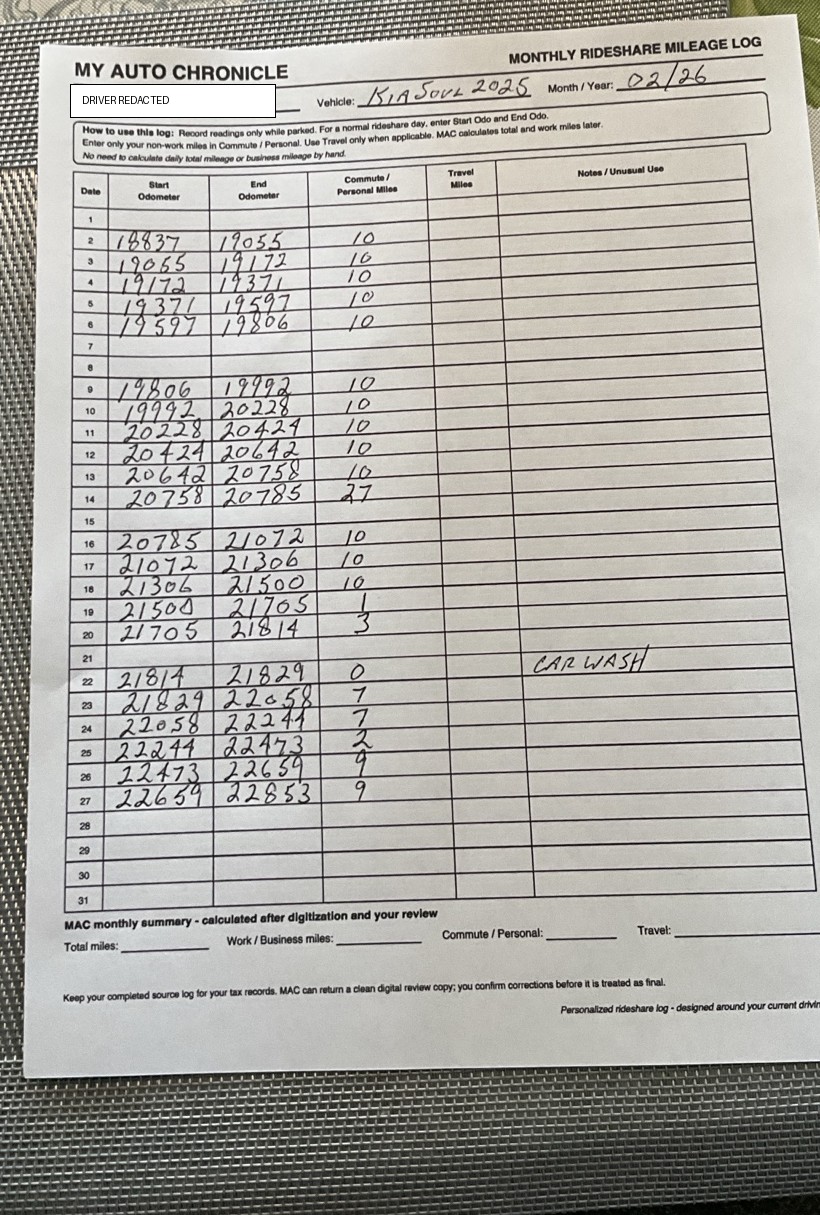
Digitized review copy
MAC's rule is to preserve uncertainty. A questionable reading remains flagged until the driver confirms or corrects it.
| Day | Start | End | Personal | Travel | Review |
|---|---|---|---|---|---|
| 2 | 18,837 | 19,035 | 10 | — | Clear |
| 3 | 19,035 | 19,172 | 16 | — | Confirm handwritten “16” |
| 14 | 20,758 | 20,785 | 27 | — | Clear |
| 22 | 21,814 | 21,829 | 0 | — | Note: CAR WASH |
| 23 | 21,829 | 22,058 | 7 | — | Confirm end odometer |
| 27 | 22,654 | 22,853 | 9 | — | Clear |
Abbreviated display for demonstration. No digitized row becomes authoritative until the driver reviews and verifies it.
Mileage log questions and answers
Which blank log should I use?
MAC uses the standard log for ordinary vehicle use. If the vehicle profile includes rideshare, delivery or other commercial use, MAC recommends the rideshare/commercial log. The page also keeps both download links available.
Why keep the handwritten source?
The source is evidence. Digitization creates a working record; it does not erase or replace the original. MAC preserves the uploaded source file locally and links reviewed mileage back to that evidence record.
What happens if handwriting is unclear?
Do not guess. The entry should remain flagged until the driver confirms or corrects it. Review and verification are required before imported mileage is committed.
Can one mileage entry cover Uber and Lyft?
Yes. Rideshare drivers can select more than one platform for the same continuous driving period. MAC does not force an artificial mileage split between Uber and Lyft.
Does MAC automatically read handwriting?
No. MAC preserves a handwritten mileage log as a source document, but it does not automatically read or interpret handwriting. Drivers may enter mileage directly or import a prepared CSV for review. All imported values require driver confirmation.
What about Destination Mode, commuting and taxes?
Uber Destination Filter and Lyft Head to destination can match trips toward a selected location. Using a filter does not, by itself, determine how a journey is classified for tax purposes. MAC records your selections; platform functions and IRS rules are separate. Helpful references (each opens in a separate tab): IRS Publication 463, Uber Destination Filter, and Lyft Location Filters. References checked November 1, 2026.
Is the example a typical mileage pattern?
No. The example vehicle is used almost exclusively for rideshare work. It illustrates the form and review process, not how another driver's mileage should be classified.
Advanced: Import a spreadsheet mileage file (CSV)
Import a spreadsheet mileage file
Supported columns include date,startOdometer,endOdometer,classification,commutePersonalMiles,travelMiles,purpose,platform or platforms,notes. Multiple platforms can be written as “Uber + Lyft” or separated with a semicolon or vertical bar. Imported rows stay in staging until you review and verify them.
Uploaded original documents
Vehicle Reminders
Create reminders for service mileage, calendar dates, or both. Saved locally with your vehicle.
Saved Reminders
Due dates and mileage appear when MAC is opened. No background push notifications are sent.
Service History
Use a Chronicle service record to start a related reminder. You choose its due mileage or date.
Backup & privacy
Restore a MAC backup
Choose a MAC JSON backup. MAC validates it first and shows what it contains before anything is changed.
Replace makes this browser match the backup. Merge keeps current items when IDs match and adds missing items. MAC 1.0 manages one vehicle at a time and refuses a merge when the backup belongs to a different non-empty vehicle.
Read important usage information
MAC helps organize vehicle information. Automated or imported information can contain errors. You remain responsible for reviewing records and confirming important maintenance, recall, tax, insurance and legal information with authoritative sources.
Important
MAC is an organizational recordkeeping tool. It is not a mechanic, tax preparer, insurer, lawyer, government record system, or authoritative recall source. Confirm important information with the appropriate authoritative source.